
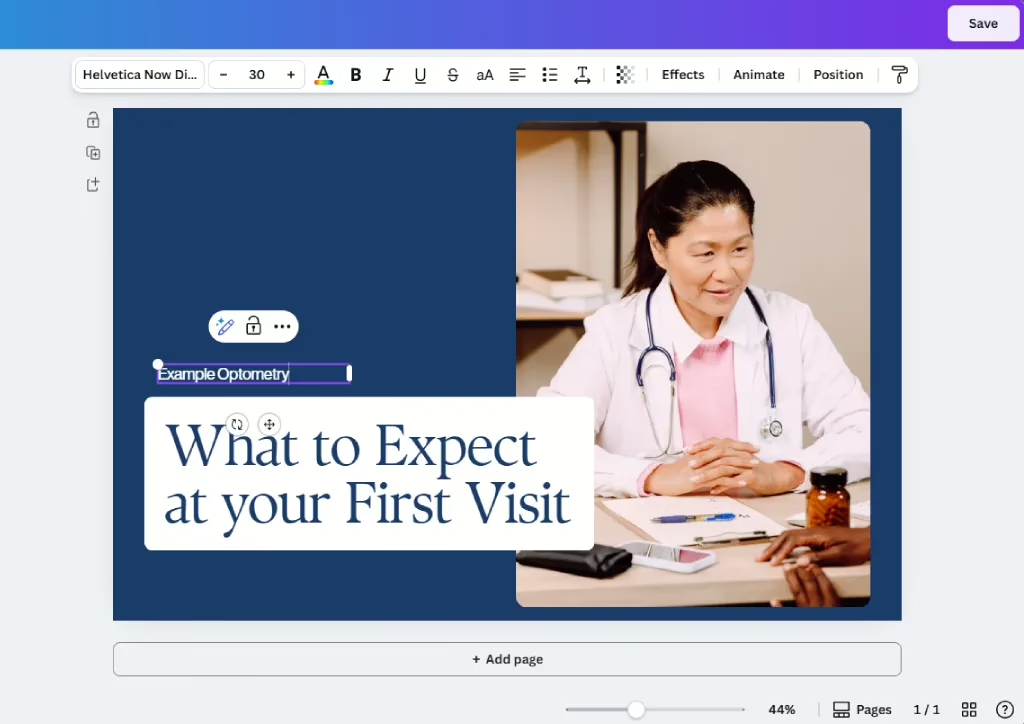
Utilizing Canva email templates to effectively communicate with your optometry clients.
Email remains one of the most effective ways for optometry practices to stay connected with patients. From exam and booking reminders to announcing new technology or offers, emails help keep your schedule full and your clients informed. The challenge? Creating emails that look professional and drive results without spending hours designing them. That’s why we decided to upgrade our email services to enable users to upload email templates created in Canva.
Why Use Canva
Canva is a user-friendly design platform. From social media posts to emails, you can design everything you need for marketing your business in Canva.
Key benefits include:
- Pre-built, professional templates for every email need
- Easy customization to tailor each template to your exact needs
- User-friendly interface ensures beautiful emails without any prior design experience
- Fast turnaround for last-minute emails or fitting in email planning into your busy schedule
These features and more enable your optometry practice to send consistent, branded emails without outsourcing design or spending hours each week designing them yourself.
Types of Email to be Sending
If you don’t have a consistent email schedule, you may be wondering where to begin. Optometry practices tend to benefit from sending the following types of emails:
- Appointment reminders and schedule availability
- Recall and annual exam reminders
- New technology or service announcements
- Promotions and seasonal offers
- Educational content (contact lens safety, eye health tips, allergy season tips, ect.)
Step-by-step guide
Follow our step-by-step guide below to master sending professional emails using Canva and the EyeAppoint Admin portal.
1. Choose Canva Email Template
When selecting an email template for your optometry practice, look for a clean layout, space to brand the email, a call-to-action button, and an uncluttered aesthetic.

2. Customize Template
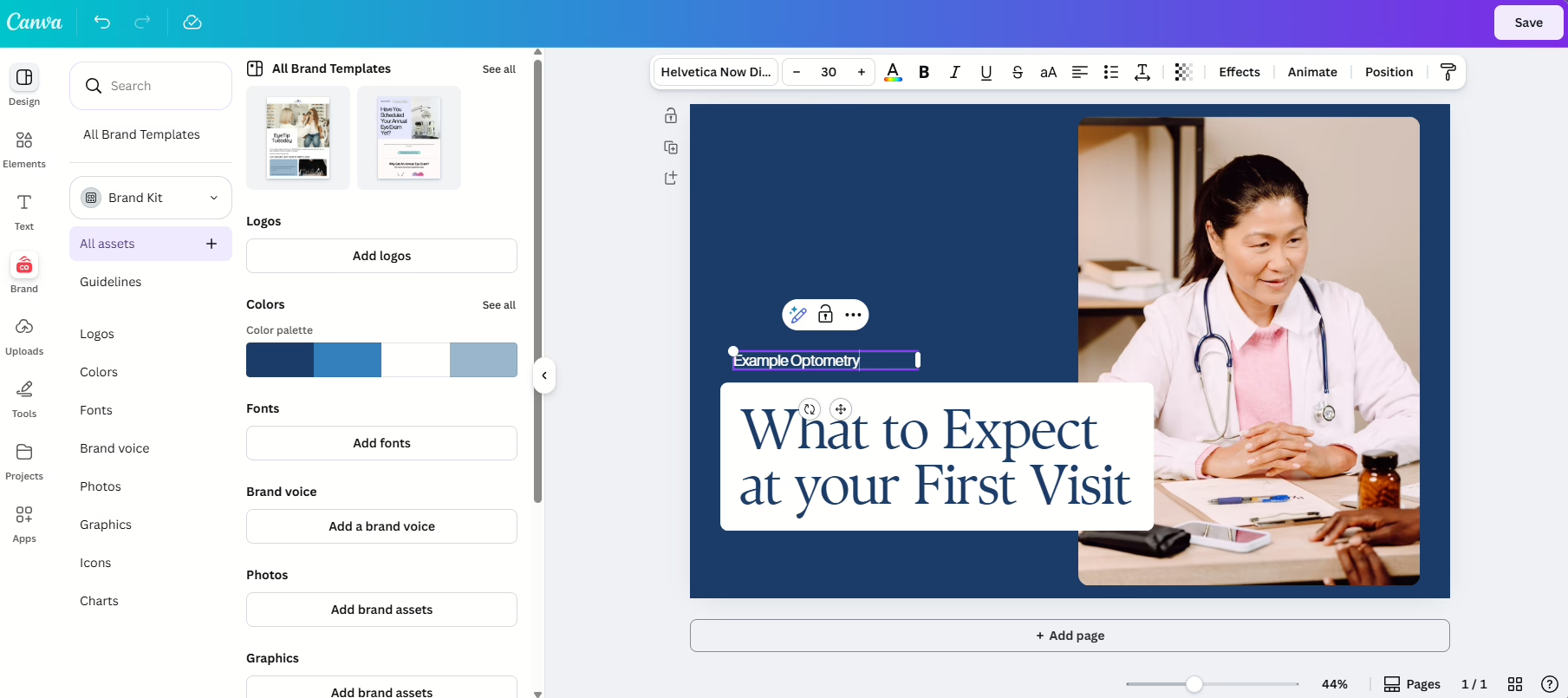
Once you’ve selected a template, it’s time to make it your own. Begin by uploading your logo and using your brand colors.
From these select 1-2 fonts to consistently use in your emails.
Replace stock photos with images that reflect your brand and patient base. Always ensure that your design is HIPAA-safe by avoiding any patient names, photos, or identifying details.
3. Write Effective Email Copy
Design grabs attention, but clear copy drives action. Tips for writing email copy for your optometry practice:
- Keep subject lines short and benefit driven
- Use short paragraphs and bullet points
- Focus on one main message per email
- Include a clear call to action (schedule an appointment, call our office, etc.)
Friendly, informative language builds trust and feels less like a sales pitch.
4. Download Canva Email as a PDF
After your design is complete and you’ve proofread your copy, click “Share” in the top, right corner.
Select “Download”

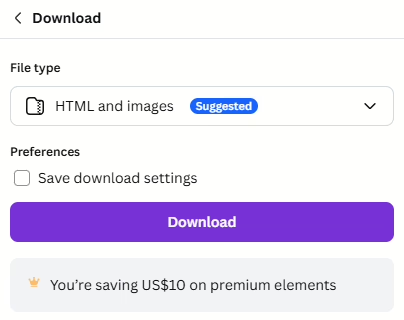
Change the file type to “HTML and images” and click “Download”
5. Upload to EyeAppoint Admin
Under templates, click on “Blank Template”
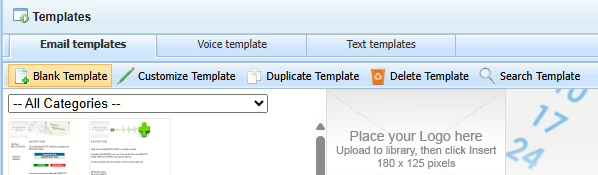
In the middle of the top tool bar, click “Upload Canva Template.”

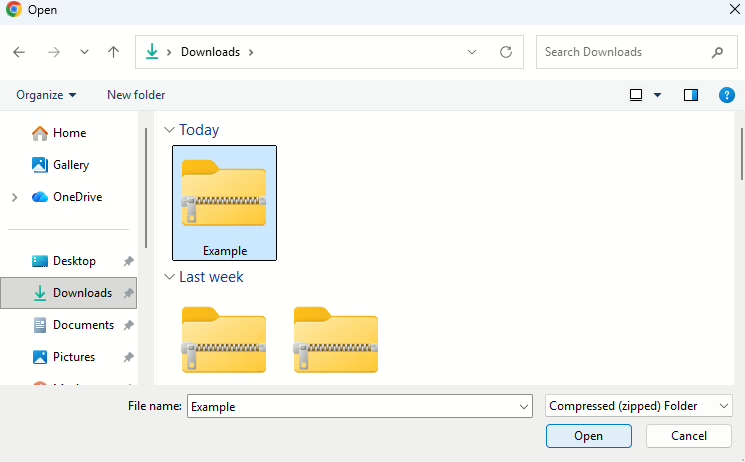
Select your Canva email file and click “Open.”
Click “Next”

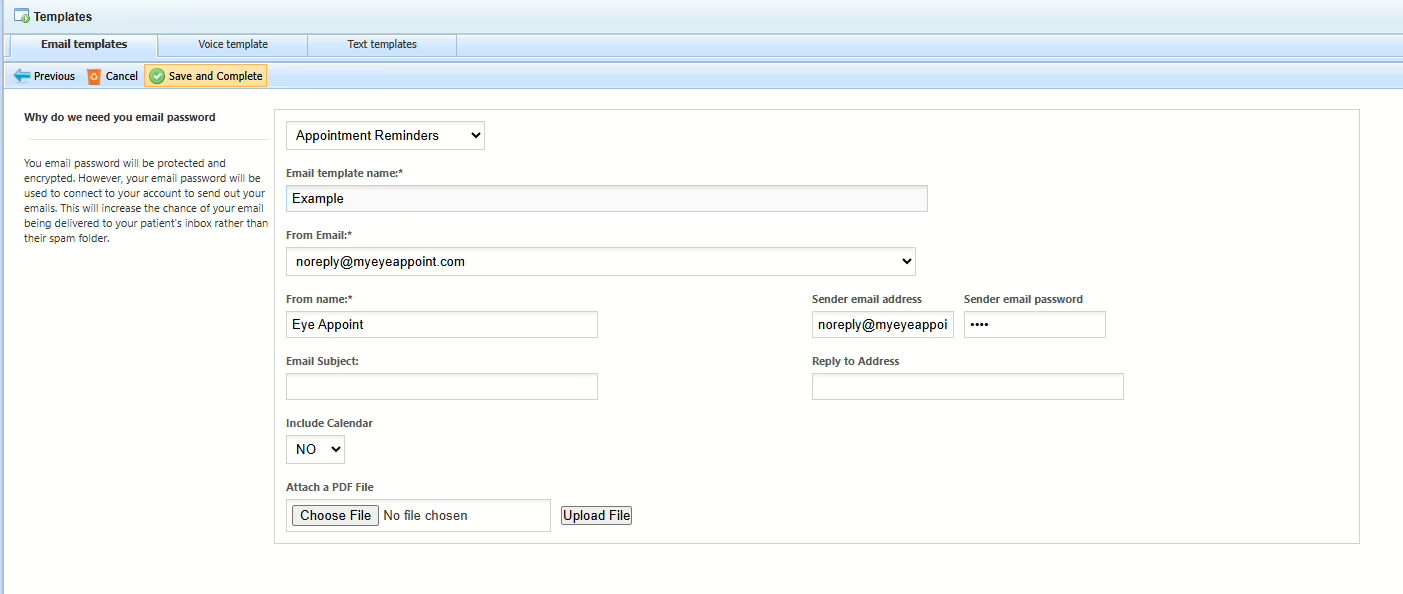
Fill out the email details and click “Save and Complete.”
6. Send a Test Email
Send a test email to yourself to ensure the formatting is correct, there are no spelling or grammar issues, and all buttons/links work properly.
7. Send to Email to Clients
Send the email to a single client or a group of clients.
Best Practices for Email Frequency
For most optometry practices, one to two emails per month is ideal. Your emails should find the ideal balance between promotional and educational content.
In general, it’s best to send emails during the mid-morning or early afternoon for best open rates.
Final Thoughts
Canva email templates give optometry practices a simple way to elevate patient communication without added complexity. When paired with EyeAppoint, Canva becomes a powerful part of your marketing toolkit.